
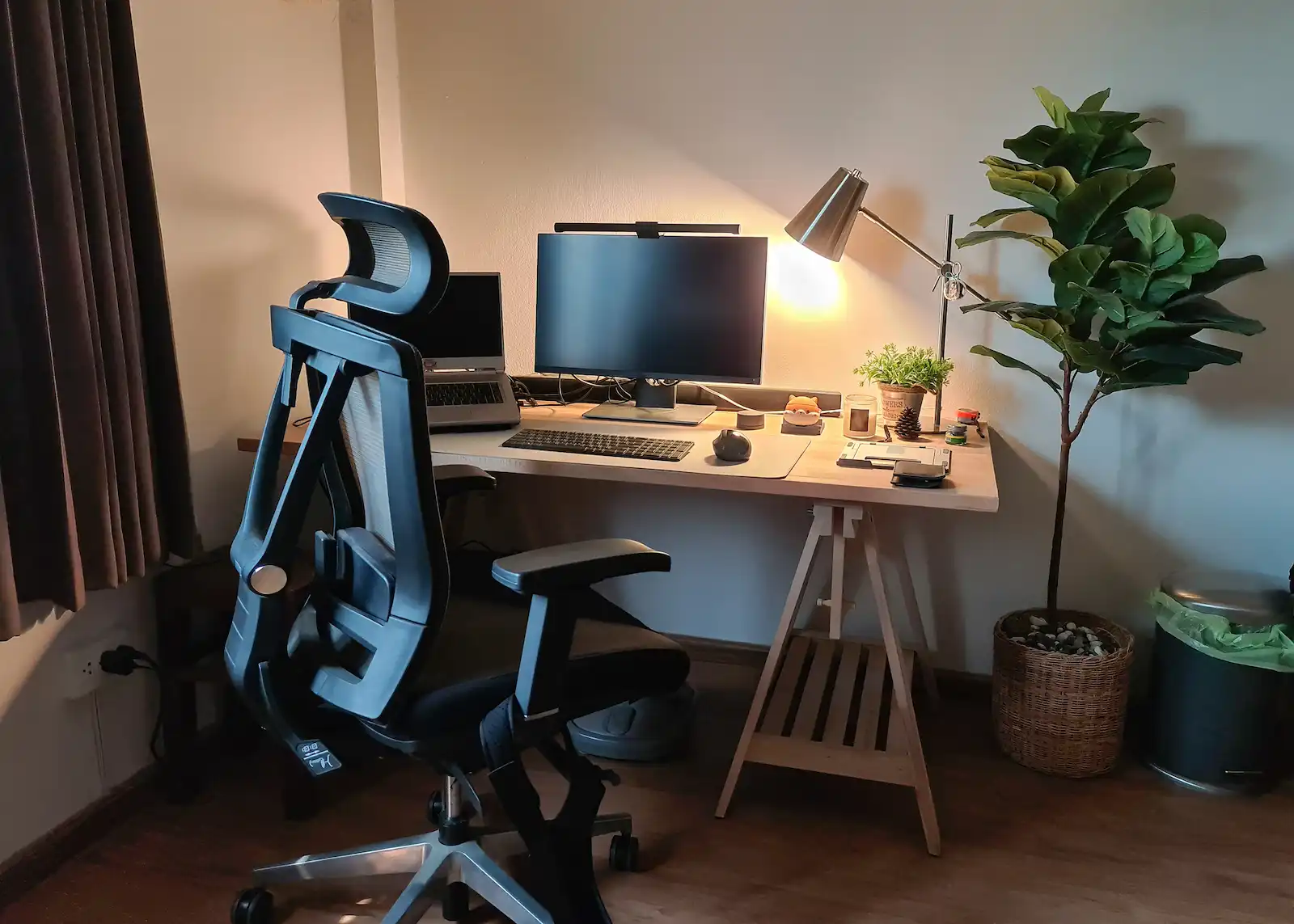
If the seat edge presses behind your knees while you sit back, try adjusting seat depth. If the arm pads lift your shoulders while you type, check armrest height and width. OSHA’s workstation chair guide explains how the seat, back and armrests support different parts of the body. Start with the contact you want to change.
Some adjustments solve basic sizing problems. Others improve movement or determine whether the chair can work with your desk, keyboard, and mouse. A shorter user may need a sliding seat pan, while someone who types for hours may need armrests that move inward and clear the front edge of the desk.
This guide ranks the adjustments by practical importance, explains what each control changes, and shows what to verify before buying. It can also help identify why a chair that looked adjustable on paper still feels wrong after it reaches the workstation.
Which Ergonomic Chair Adjustments Matter Most?
Some chair controls affect nearly every user, while others become important only for certain body proportions, work habits, or desk setups. The table below shows the priority each adjustment usually deserves in a typical computer workstation and the specific range or behavior to verify before buying.
Ergonomic Chair Adjustment Priority Guide
| Adjustment | Typical Priority | What It Changes | What to Verify |
|---|---|---|---|
| Seat Height | Essential | Foot support, thigh position, knee angle, and the relationship between the chair and desk. | Published minimum and maximum height, cylinder stability, and whether the usable range works with your desk or footrest. |
| Seat Depth | Essential for Fit | Thigh support, knee clearance, and whether you can sit fully against the backrest. | Usable front-to-back travel, a stable locking mechanism, and enough range for your leg length. |
| Lumbar Height and Depth | High | Where the backrest meets your lower back and how strongly it presses into the lumbar curve. | Height and depth range, pressure that is supportive rather than aggressive, and contact during upright sitting and recline. |
| Armrest Height, Width, and Depth | High for Computer Work | Shoulder position, elbow alignment, keyboard reach, mouse reach, and desk clearance. | Enough inward and outward movement, usable height range, pads that move behind the desk edge, and minimal wobble. |
| Recline Tension and Synchronized Tilt | High for Long Sessions | How easily you move, whether the backrest supports your weight, and whether lumbar contact remains consistent. | Tension that matches your body weight, smooth return movement, useful recline angles, and stable foot contact. |
| Seat Tilt | Situational | Pelvic angle and comfort during forward-focused tasks such as writing, drawing, or close keyboard work. | A subtle usable range, predictable movement, and a lock that does not introduce seat instability. |
| Headrest Height and Depth | Situational | Head and neck support during recline rather than normal upright typing. | Enough range to meet the back of the head without pushing it forward when you sit upright. |
Seat height is essential but common. Seat depth, armrest width, and lumbar placement are less universal and often determine whether a chair can adapt beyond average proportions. A chair does not need every control in the table, but the adjustments it includes should offer usable range and remain stable after they are set.
After delivery, use the ergonomic chair fit checklist to test whether these controls work together at your actual desk.
Seat Height and Seat Depth: The Two Basic Fit Controls
Seat height sets the relationship between your feet, thighs, and work surface. At a usable height, your feet should be supported and the front edge of the seat should not create concentrated pressure under your thighs. When the desk forces the chair higher than your legs can tolerate, a stable footrest or lower keyboard surface may be needed.
The published height range matters more than the presence of a lever. Shorter users need a low enough starting point, taller users need enough lift without losing stability, and shared chairs need a wider range that can accommodate more than one person.
Seat depth controls whether you can sit fully against the backrest while keeping a small gap behind your knees. A seat that is too deep encourages sliding forward, while a seat that is too shallow leaves more of the thighs unsupported. A sliding seat pan is especially useful when the chair will be shared or when your leg length falls outside the range served by a fixed seat.
Set the height first, then adjust the seat depth, and only then move the chair into its working position at the desk. This order makes it easier to separate a chair-sizing problem from a desk-height or keyboard-position problem.
The desk chair sizing guide explains which published dimensions are worth checking before a chair is ordered.
Lumbar Support: Height, Depth, and Recline Contact
Lumbar support works when it meets the inward curve of your lower back while you sit fully against the backrest. Height adjustment changes where that contact occurs, while depth adjustment changes how strongly the support presses forward.
More pressure does not automatically create better support. A lumbar pad that sits too high can feel like mid-back pressure, while one that sits too low may allow the pelvis to roll backward. Excessive depth can also encourage you to slide toward the front of the seat to escape the pressure.
Test the support in both upright sitting and a modest recline. The backrest should remain close enough that your lower back does not immediately lose contact when you lean away from the desk. This depends on the lumbar adjustment and the way the backrest and seat move together.
A fixed lumbar shape can work when it happens to match your torso, but adjustable height and depth provide more room for different body proportions or shared use. The seat depth, lumbar, and armrests guide explains how these contact points affect one another.
Armrests: Height, Width, Depth, and Desk Clearance
Armrests affect whether you can keep your shoulders relaxed and your elbows near your sides while reaching the keyboard and mouse. Height adjustment establishes basic forearm support, but height alone does not guarantee that the pads will line up with your body or workstation.
Width adjustment matters when fixed armrests push the elbows outward or sit too far apart to support a narrower frame. Depth adjustment helps the chair move closer to the desk, and pivoting pads can follow the angle of the forearms when the keyboard or mouse position is not perfectly straight ahead.
Test the armrests at the actual desk rather than judging them away from the workstation. If the pads hit the front edge before you can reach the keyboard comfortably, a highly adjustable armrest can still make the setup worse. Armrests that lower far enough, move backward, or can be removed may be more useful than a longer feature list.
The controls should also move deliberately and remain stable under normal forearm pressure. Excessive play in the posts or pads makes it harder to return to the same position after changing tasks, even when the published adjustment range looks generous.
Recline Tension and Synchronized Movement
Recline tension should balance your body weight so the backrest supports movement without dropping away or forcing you upright. A mechanism that feels too loose can make the chair unstable, while excessive resistance can encourage you to stop using the backrest and remain near the front of the seat.
Synchronized tilt coordinates the movement of the seat and backrest instead of rotating both parts at the same angle. A useful mechanism lets you lean back while keeping your feet supported and maintaining contact through the lower back.
Lock positions are less important than smooth resistance and a predictable return. Test small movements around the normal working angle, not only the deepest recline position. The chair should follow you backward and return without a sudden change in force.
Long sitting usually places more value on consistent movement and backrest contact, while a sit-stand routine may place more value on easy transitions around the desk. The long sitting vs sit-stand chair guide explains how those work patterns change the chair decision.
Adjustment Range, Precision, and Stability
Every adjustment has three separate qualities: range, precision, and stability. Range determines whether the chair can adjust to your proportions. Precision determines whether it can be fine-tuned. Stability determines whether the mechanism continues holding that position under daily use.
A longer feature list does not help when those qualities are weak. Four-direction armrests may still sit too far apart, and a sliding seat may offer only two coarse locking positions. A simpler control with the correct range and a solid mechanism can be more useful than several loosely implemented adjustments.
Brand reputation can provide clues about mechanism testing, replacement parts, and long-term support, but the individual chair design still determines fit. Published dimensions, the construction of the controls, and the way the mechanisms behave under load deserve more attention than the logo alone.
Operate each control while seated whenever possible. Check whether the lever is easy to reach, whether the setting can be repeated, whether it drifts after several movements, and whether the seat, arms, or backrest develop noticeable play. A useful adjustment should move predictably and hold its setting.
Match the Adjustment to the Problem You Feel
The most useful adjustment is the one connected to the problem you are experiencing. Match the symptom to the control before changing several settings at once.
- Feet unsupported or pressure under the thighs: Check seat height first, then determine whether the desk requires a footrest or lower keyboard position.
- Pressure behind the knees or difficulty sitting fully back: Reduce seat depth when possible and confirm that the chair is not set too high.
- Lumbar support misses the lower back or creates one hard pressure point: Adjust lumbar height and depth, then retest the seat-depth position.
- Shoulders rise or elbows move outward while typing: Check armrest height, width, and depth together with keyboard and mouse placement.
- The backrest falls away or pushes you forward: Adjust recline tension and test how the seat and backrest move through a normal working range.
Change one variable at a time and retest the chair in the position where you actually work. When several problems remain after the available controls have been used correctly, the chair dimensions or workstation geometry may be the larger limitation.
What to Prioritize Before Buying an Ergonomic Chair
If you’re shopping for an ergonomic office chair with a headrest, check the seat first. A headrest won’t give your knees more clearance if the seat pan is too deep. Then check whether the lumbar support meets the correct area, the armrests align with your keyboard and mouse position, and the recline mechanism supports normal movement.
An adjustment deserves priority when it solves a real fit requirement. A simpler chair with the correct dimensions and stable controls can be a better long-term match than a feature-heavy model with narrow adjustment ranges or loose mechanisms.
After narrowing the options by fit and adjustment quality, compare materials, construction, warranty coverage, and current product choices in the complete ergonomic chair guide.
Disclaimer: The content on The Hearthful Home is for general informational purposes only and reflects independent research, experience, and opinions at the time of publication. It is not intended as medical, professional, or safety advice. Always follow manufacturer instructions and consult a qualified professional before starting any new product, routine, or practice. Product details, specifications, and prices are subject to change by their respective manufacturers or retailers. The Hearthful Home participates in the Amazon Associates Program and other affiliate programs, and may earn a small commission from qualifying purchases—at no extra cost to you.